Training approach — role-based, per institution
Nobody gets generic "LMS training." Each institution nominates named staff into tracks matched to their job, and each track ends in observed, unaided task performance — the same competency logic the clinical modules use on learners.
System administratorsUsers, cohorts & enrolment · roles & permissions · backups & restore (.mbz) · certificates · mobile app settings.
Course authors / managersUpload SCORM/H5P · configure pass gates & completion · embed repository media · update a module version-safely.
Analytics & M&E officersCompletion & at-risk reports · step-level failure views · monthly registrar digest · export for board reporting.
Leadership briefingRegistrars & directors: what the dashboards mean, what to ask for monthly, and what custody they now hold.
1 · I do — the task is demonstrated live and as a recorded walkthrough that stays in the portal forever.
2 · We do — the trainee performs it with coaching, on the institution’s own platform.
3 · You do — the trainee performs it unaided against the sign-off checklist. Only then is the competency ticked.
Sample online user guide
Guides live as web pages inside the institution’s Resource Portal — searchable, always current, and paired with a recorded walkthrough. Two samples, expandable:
Guide 01 · Upload a SCORM module and set the 80% pass gate
Open the course where the module belongs, switch on Edit mode (top-right), and choose the section.
Click Add an activity or resource → SCORM package, and drag the module’s .zip into the package area.
Under Grade, set Grading method: Highest attempt and Maximum grade: 100.
Under Activity completion, choose Show activity as complete when conditions are met, tick Require grade, and set the passing grade to 80.
Save and display — run the module once yourself as a test; confirm a failing score does not mark it complete.
Check Reports → Activity completion the next day to confirm learner attempts are tracking.
Guide 02 · Run a completion report for a course (with recorded walkthrough)
Open the course and select the Reports tab.
Choose Activity report (or Activity completion for per-learner status).
Read views, users and last access per activity; use Filter to scope by date for the monthly digest.
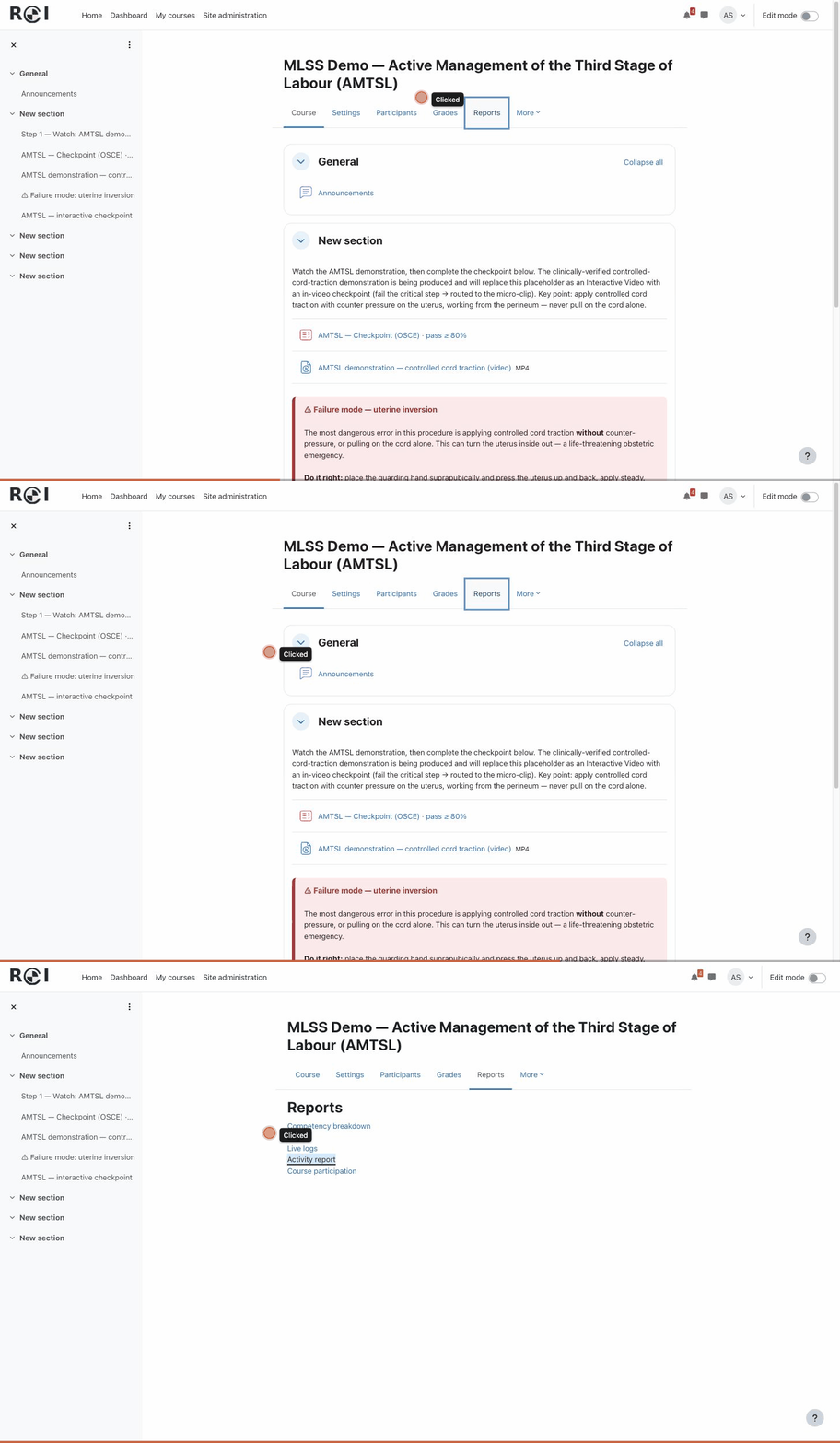
Recorded directly from the live production LMS — every guide ships with a walkthrough like this, embeddable in the institution’s Resource Portal exactly like the clinical media (same permanent-URL pattern).
The handover kit — what each institution receives
- Packaged modules (SCORM/H5P) + full Moodle course backups (.mbz) — importable into any conformant LMS
- The digitized QA monitoring and curriculum-feedback instruments
- Admin & author runbooks (import, cohorts, roles, certificates, mobile)
- Online user guides + recorded walkthroughs (this portal)
- Analytics setup guide and dashboard definitions
- Media catalogue custody plan — repository domain, storage and catalogue transferable to the institution
- Maintenance & currency checklist tied to the standing scope-of-practice statement
- Named-staff competency sign-off register (below)
Competency sign-off — proof the transfer happened (tap to try)
Sample from the System Administrator track. Handover is complete when every named trainee performs these unaided — observed and countersigned, not assumed.
Creates a user, adds them to the correct cohort, and enrols the cohort in a course
Restores a course from a .mbz backup into a new category
Uploads a SCORM module and configures the 80% completion gate (Guide 01)
Runs the monthly completion report and exports it for the registrar (Guide 02)
Issues and verifies a completion certificate
0 / 5 demonstrated unaided